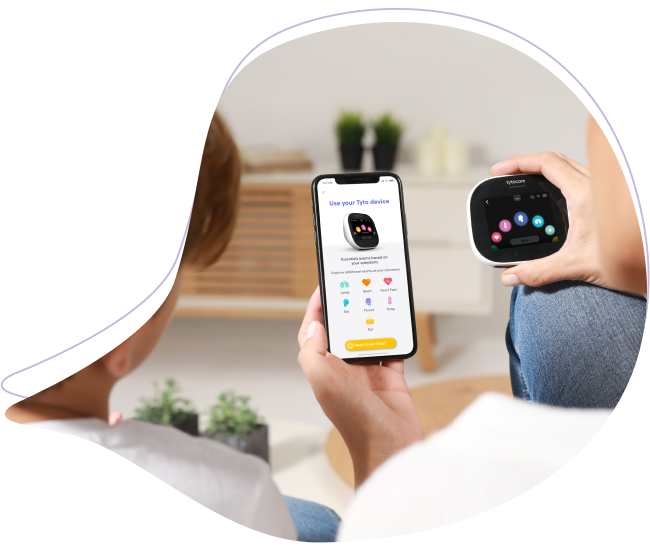
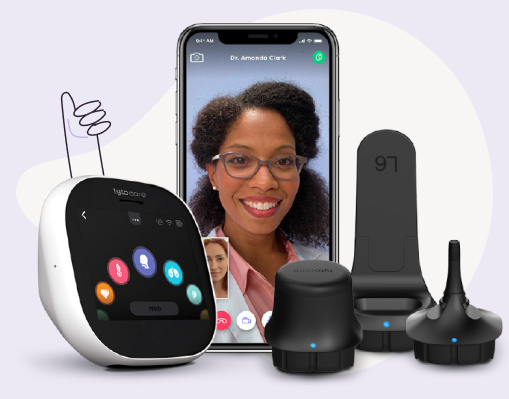
Essential steps for staff at the patient's location to ensure high-quality clinical data capture.
1. Patient & Environment Setup
- Positioning: Place the patient comfortably so they can see the provider on the screen. Align the tablet so both the patient and the assistant are clearly visible to the clinician.
- Environment: Choose a quiet, private space. Background noise from fans, AC units, or talking can interfere with sensitive heart and lung auscultations.
- Pediatric Tip: Involve children by showing them the screen. Let them see their own "ear on TV"—it helps reduce anxiety and keeps them still during the exam.
Point of Care Readiness Checklist
- Power: Confirm tablet and Tyto device are fully charged or connected to a power source.
- Sanitization: Thoroughly wipe the device and all attachments with a 70% isopropyl alcohol swab.
- Hygiene: Use a new, sterile speculum or tongue depressor for every patient.
- Network: Use the "Test Connection" tab in the app to verify audio/video stability before starting.
2. Clinical Exam Guidelines
Ear Exam (Otoscope)
Attach the correct-sized speculum. Gently pull the ear pinna back and up to straighten the canal. Follow the darkest area on the screen until the eardrum is in view.
Heart & Lung (Stethoscope)
The rubber tip must make direct contact with the skin. Do not perform over clothing. The PoC side is muted by default during this exam to prevent audio feedback loops.
Skin Exam
Hold the device steady 2–4 inches above the skin surface. Use the 'Focus' button in the app if the image resolution is not sharp.
Temperature
Point the sensor 1–2 inches from the center of the forehead. Ensure the area is clear of sweat, hair, or head coverings.
Throat Exam
Attempt the exam without the tongue depressor first. If the uvula is obscured, attach the depressor. For pediatric patients, record the exam for the clinician to review in frames.
3. PoC Troubleshooting
| Issue | Point of Care Action |
|---|---|
| Slow network / Lagging | Move closer to the Wi-Fi router; ensure no other devices are streaming on the same network. |
| Device icon is Red | The handheld device is disconnected. Re-pair it via the app settings immediately. |
| No Audio from Clinician | Check the tablet's physical volume buttons and verify the app's speaker icon is not muted. |