The Device State Widget consolidates data from multiple diagnostic tests into a single, convenient overview for rapid troubleshooting.
This widget serves as a summary dashboard, allowing support teams to verify hardware permissions and local environmental factors at a glance.
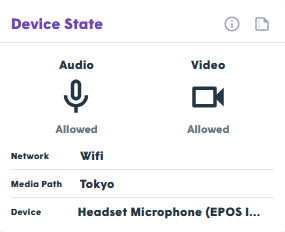
Data Collected and Shared
| Category | Significance |
|---|---|
| Audio | Confirms if the browser was granted permission to access the microphone. |
| Device | Displays the specific name of the default audio device currently in use. |
| Network | Detects the network type reported by the browser (e.g., Wi-Fi, Ethernet). Best-effort detection; availability varies by browser. |
Critical Troubleshooting Steps
- Verify Permissions: Ensure the "Audio" state is marked as allowed; otherwise, the clinician will not hear the patient.
- Analyze Device Identity: Verify if the device name is appropriate. This field helps detect problematic setups such as Bluetooth headsets (which may have lag) or Virtual Desktop Infrastructure (VDI/Remote Desktop) solutions that can cause audio redirection issues.
- Wi-Fi Assessment: If the network type is Wi-Fi and performance is poor, cross-reference this with jitter values. High jitter on Wi-Fi typically suggests the user is too far from the access point or experiencing signal interference.