Symptom
You are logged into the Clinician Station but are not hearing any audio during a visit or exam playback. Follow these steps to troubleshoot audio permissions in Google Chrome.
Step 1: Open Chrome Settings
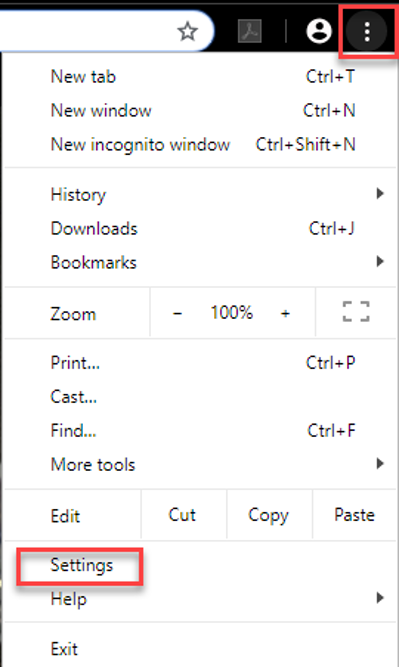
- In Google Chrome, click the three dots icon (Menu) in the top right corner.
- Select Settings from the drop-down menu.
Step 2: Verify Notification Permissions
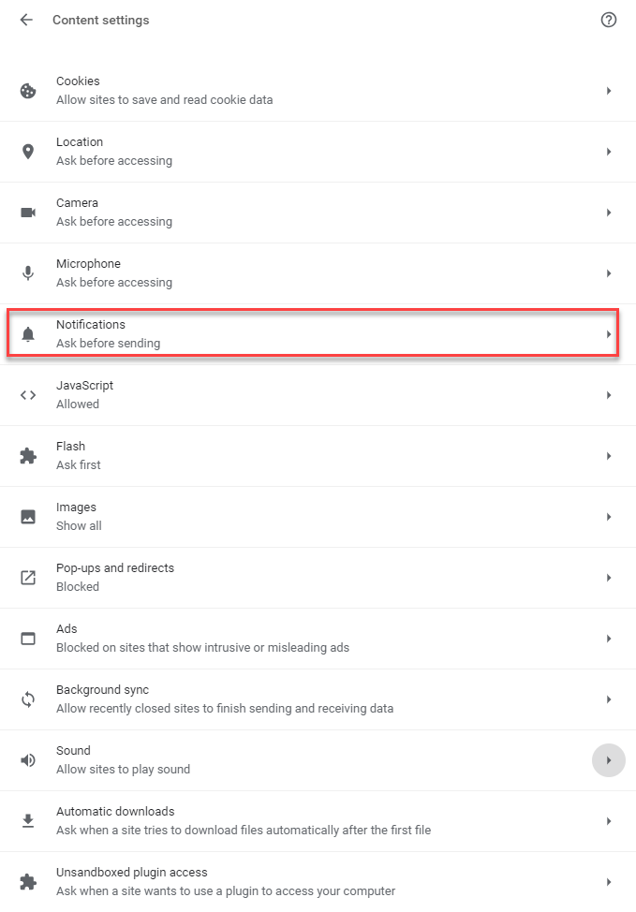
- In the Settings sidebar, go to Privacy and Security > Site Settings.
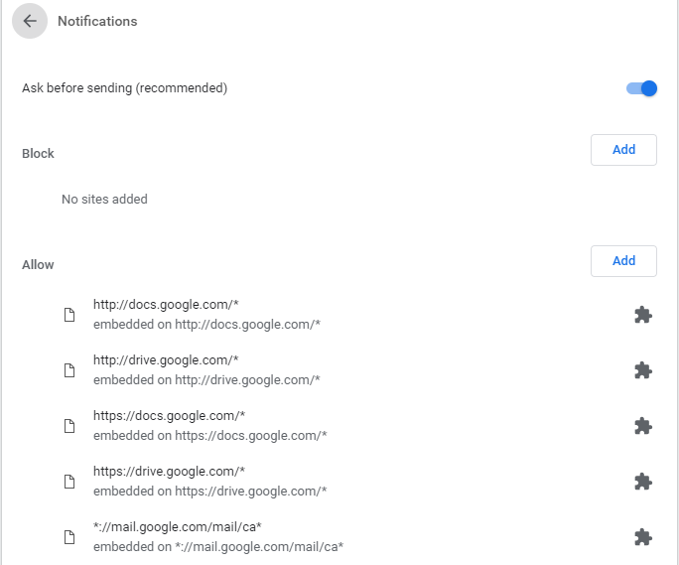
- Scroll down and click on Notifications.
- Scroll to the "Allowed to send notifications" section.
- Ensure that cloud.tytocare.com is listed here.
- If it is not listed, click Add and enter
cloud.tytocare.comto allow notifications. - Ensure you are not blocking notifications from this address.
- If it is not listed, click Add and enter
Step 3: Verify Sound Permissions
- Go back to the main Site Settings menu.
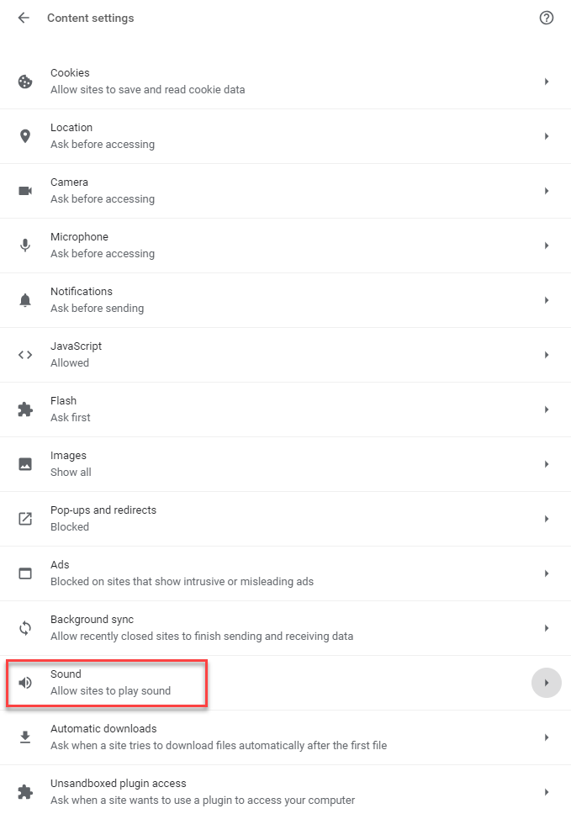
- Scroll down to Additional content settings and select Sound.
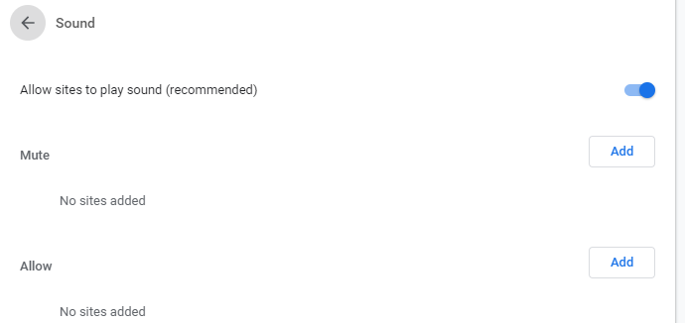
- Ensure the toggle for "Sites can play sound" is turned ON.
- Check the "Allowed to play sound" list.
- Ensure cloud.tytocare.com is listed here.
- If it is not listed, click Add and enter
cloud.tytocare.comto allow the Clinician Station to play sound. - Ensure you are not blocking sound from this address.
Step 4: Check for Muted Tab
- Navigate to your active Clinician Station tab (https://cloud.tytocare.com).
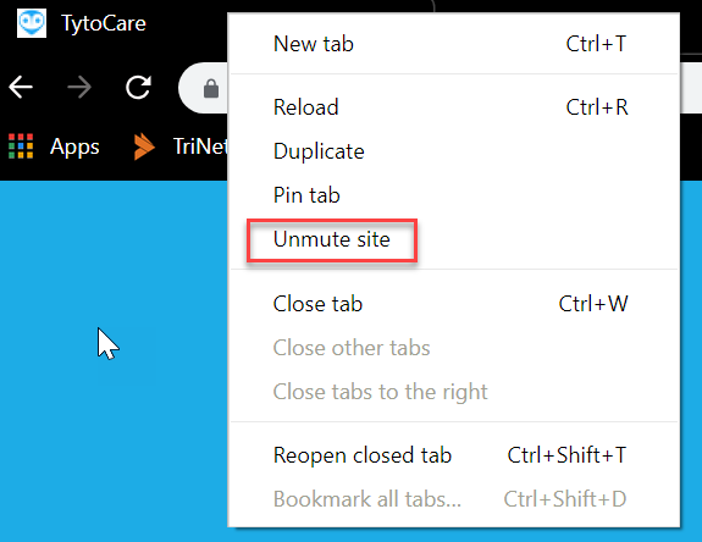
- Right-click on the browser tab itself (at the very top of the window).
- If you see the option Unmute site, click it. (If it says "Mute site", the audio is already enabled).
Contact Support
If you are still not receiving audio after performing these steps, please contact TytoCare support:
- Email: support@tytocare.com
- Phone: 866-971-8986 (Option 2)