If you do not have a standard Wi-Fi connection, you can use your Android device's mobile data to pair your TytoCare device. Follow these steps to activate your hotspot and complete the pairing workflow.
Step 1: Activate the Hotspot on Your Android Device
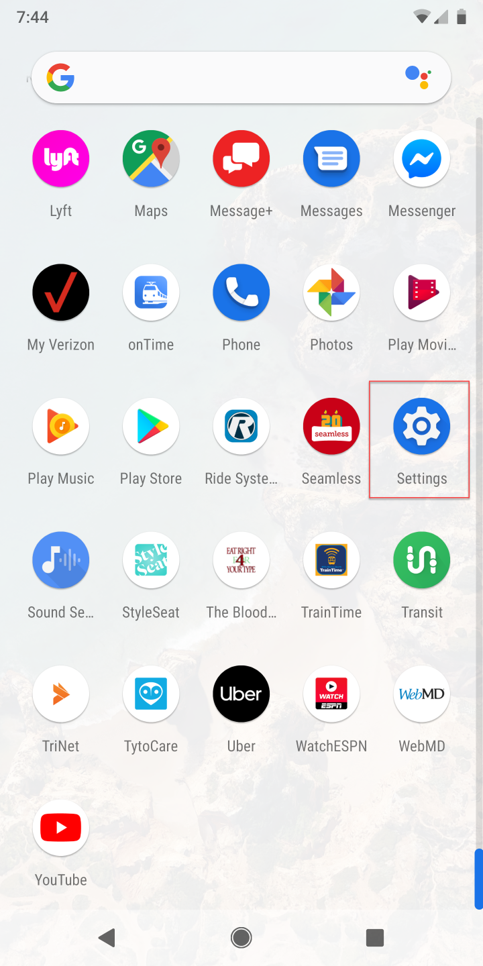
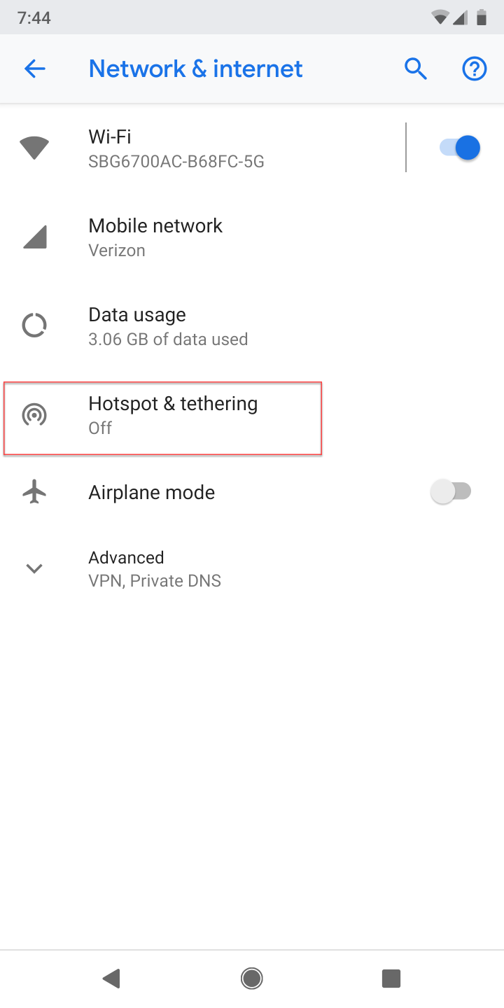
- Open Settings on your Android device.
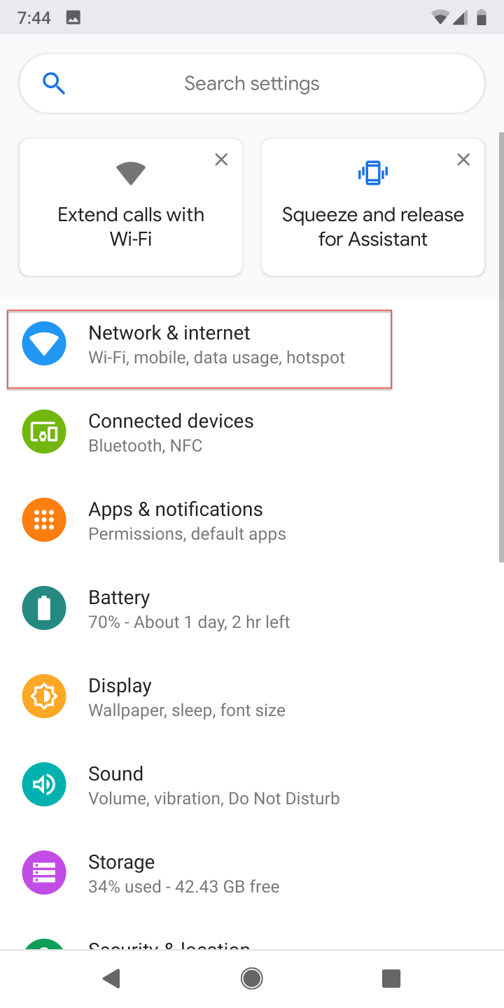
- Select Network & internet.
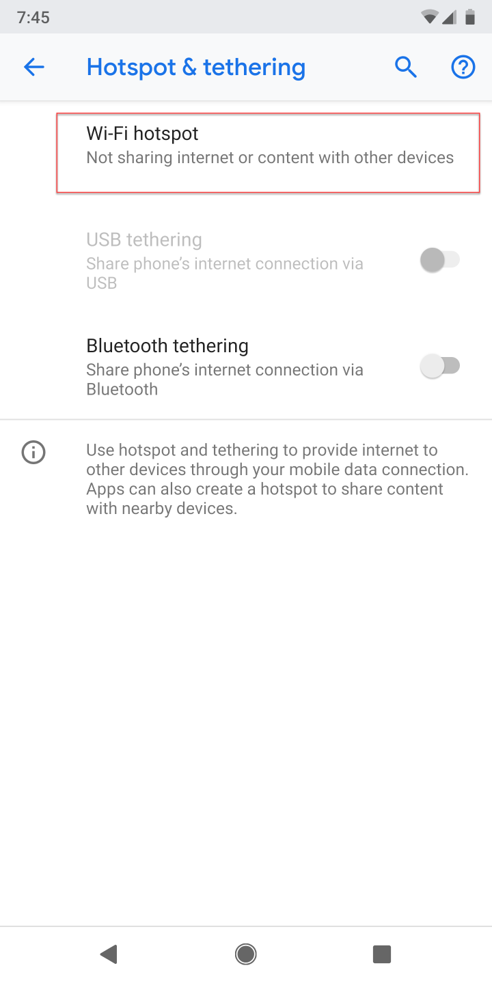
- Select Hotspot & tethering.
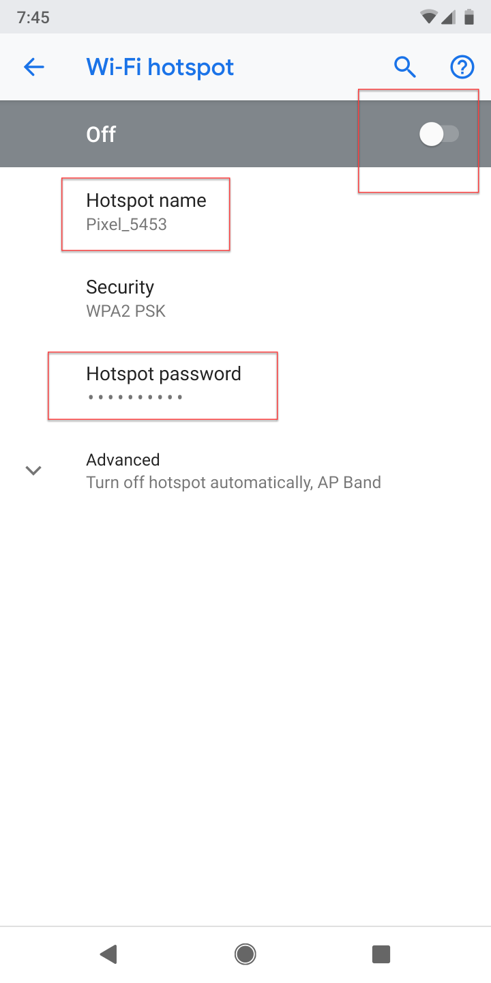
- Select Wi-Fi hotspot.
- Toggle the switch to On.
Note: Carefully write down the Hotspot name and Hotspot password exactly as they appear.
Step 2: Complete the Pairing in the TytoCare App
- Open the TytoCare App pairing screen. Choose Hotspot as your connection type.
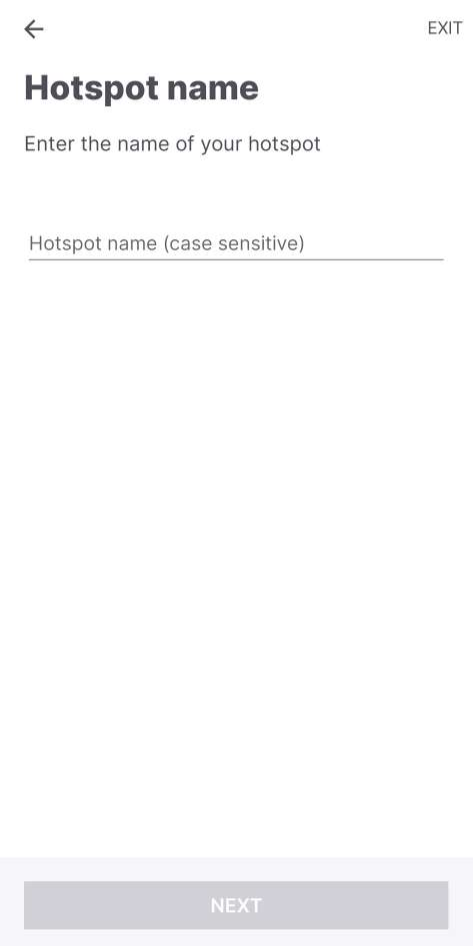
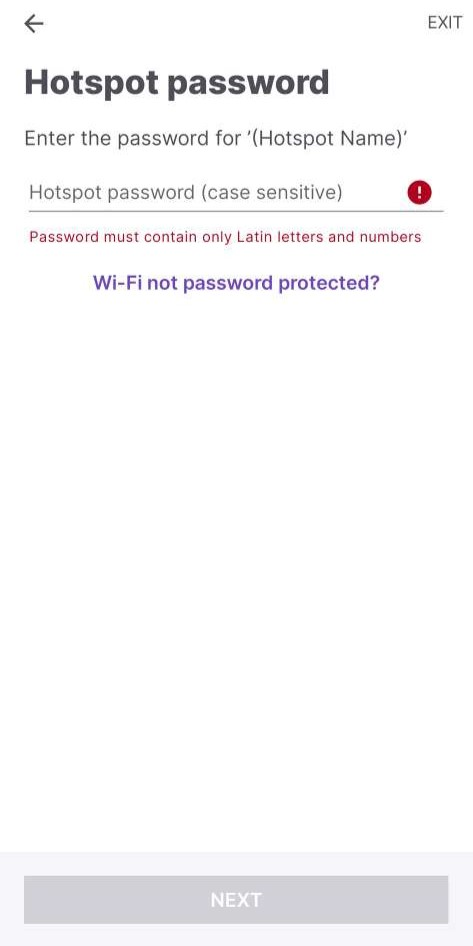
- Manually enter your Hotspot Name and Password exactly as noted in Step 5, then tap Next.
- Tap SHOW QR CODE.
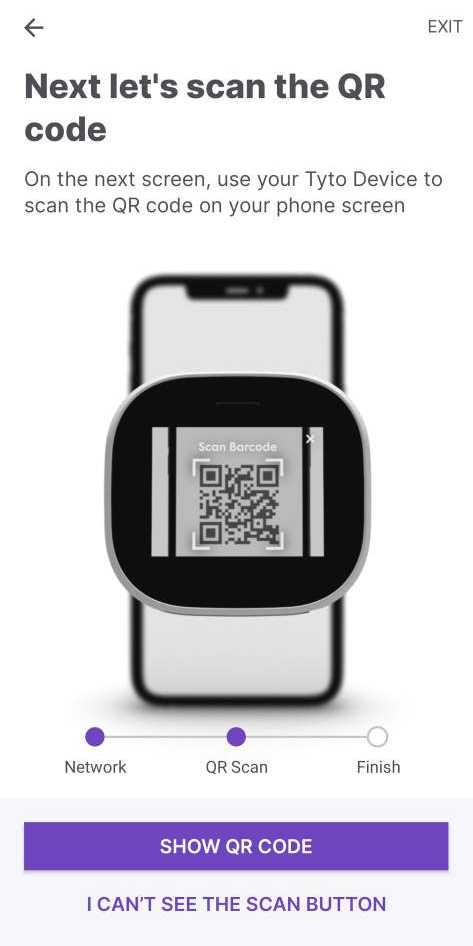
- On the TytoCare Device, select "Scan QR Code" and position the device camera to scan the code displayed on your phone screen.
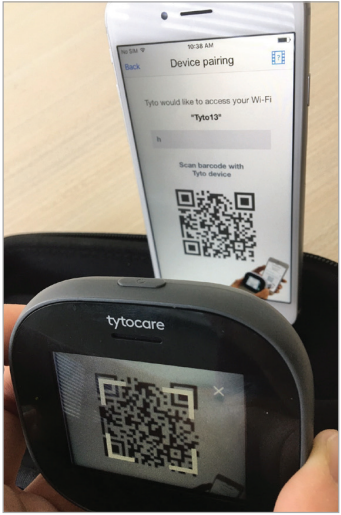
Successful Connection: Once scanned, the TytoCare device will confirm the connection. Ensure your phone remains on the hotspot screen during this process to maintain a visible signal for the device.