Follow the steps below to measure blood pressure using your Omron EVOLV – Blood Pressure Monitor.
Note: Before getting started, please make sure that you have paired your Omron EVOLV Blood Pressure Monitor. For pairing instructions, please refer to the Pairing External Connected Devices section in the User Guide.
Instructions
- Perform Exams: Use your Tyto Device to perform the necessary examinations (e.g., Heart, Lungs, Ears, Throat, Temperature, Skin).
- Complete Visit: Once you have finished the exams, tap Save Visit (or "Complete Visit") on your Tyto Device to transfer the data to the TytoApp.
-
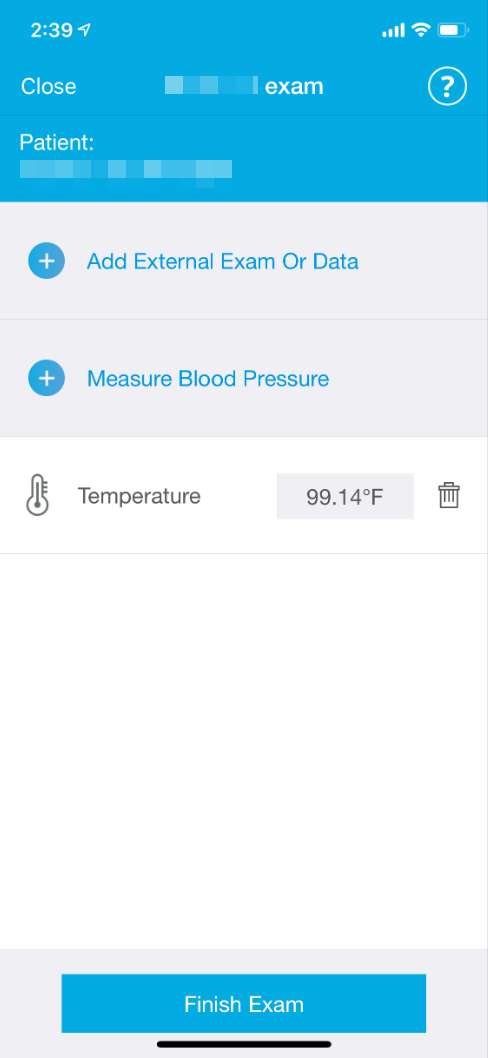
Select Blood Pressure: On the TytoApp screen, under "Add External Exams or Data," select Measure Blood Pressure (or the Blood Pressure icon).
-
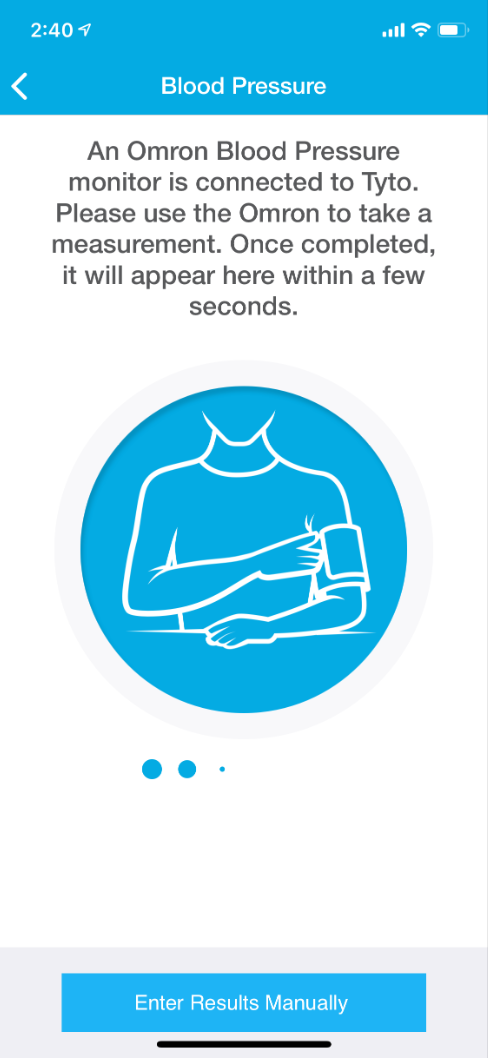
Perform Measurement: Put the cuff on your arm and press the START button on the Omron EVOLV device to begin the measurement.
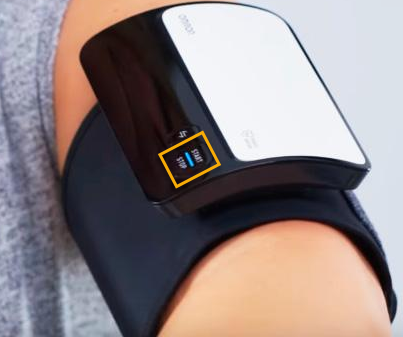
-
Verify Results: After a successful measurement, the results will automatically appear in the TytoApp. Verify the numbers are correct and tap Done.
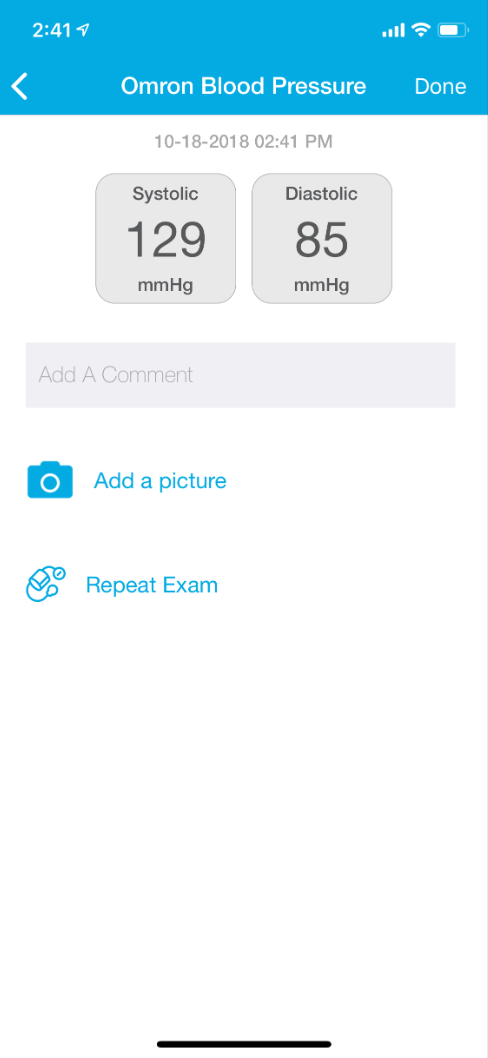
-
Finish Exam: Review the results on the App summary screen and tap Finish Exam to save the data.
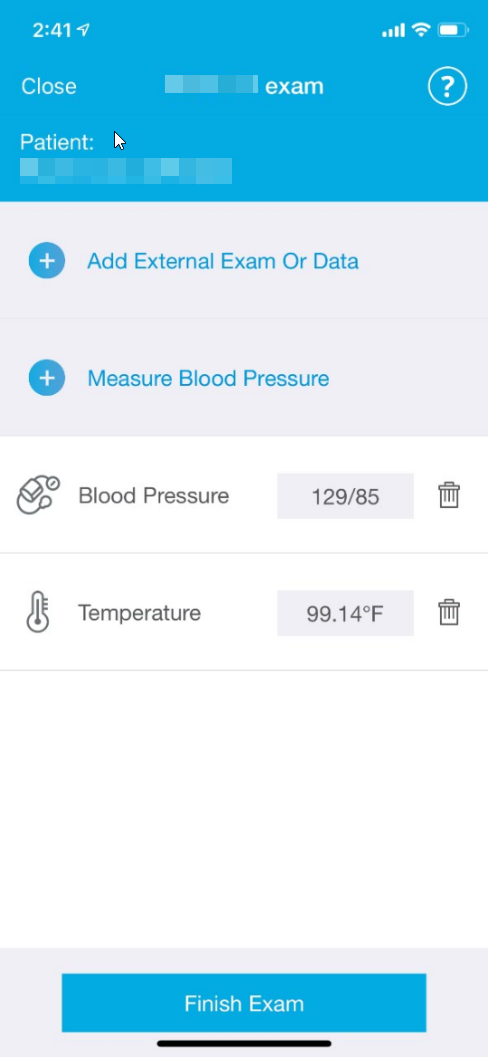
Important Notes
- If you prefer, you can skip the connected reading and enter the results manually.
- The reading displays the time of day the measurement was performed.
- If you wish to only capture your Blood Pressure without performing other Tyto exams, you can start a visit and select only the Blood Pressure exam from the External Exams menu.