If you do not have access to a standard Wi-Fi network, you can pair your TytoCare device using your iPhone or iPad's Personal Hotspot. Follow these steps to establish a connection.
Step 1: Activate Hotspot on your iOS Device
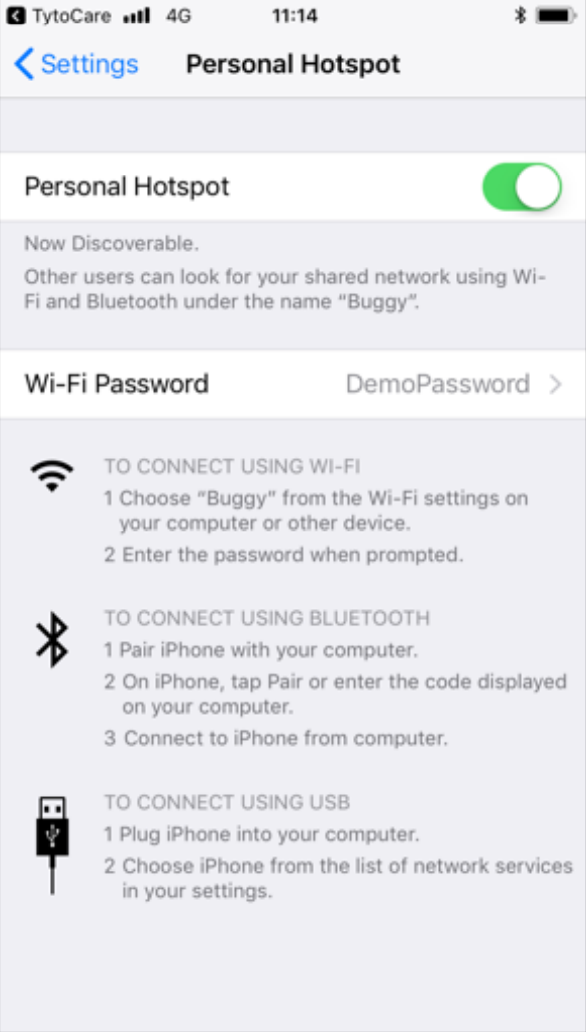
- Enable Hotspot: On your iOS device, go to Settings > Personal Hotspot. Toggle Allow Others to Join to ON and note your Wi-Fi Password.
- Generate QR Code: In the TytoCare App, select Hotspot as your connection type, enter your hotspot password, and tap Next. This will generate a QR code on your iPhone screen.
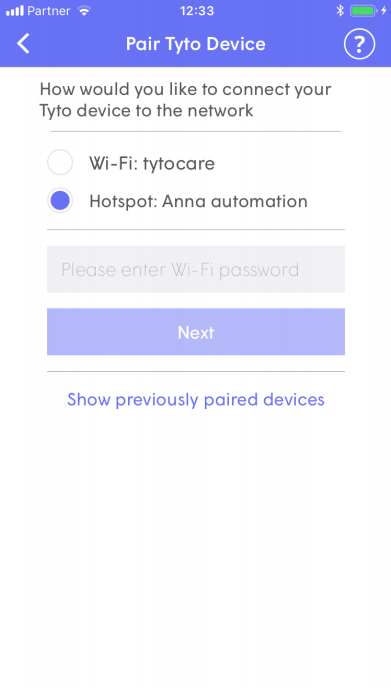
Enter Password & Tap Next
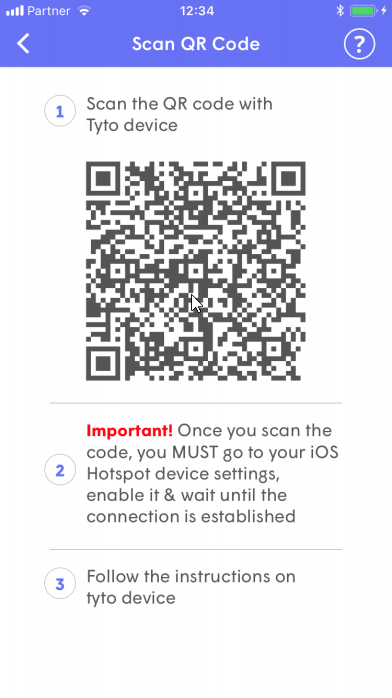
QR Code Created on iPhone
Step 2: Scan the QR Code with the Tyto Device
- Activate Camera: On your TytoCare Device, select that you have the App installed, then tap SCAN BARCODE.
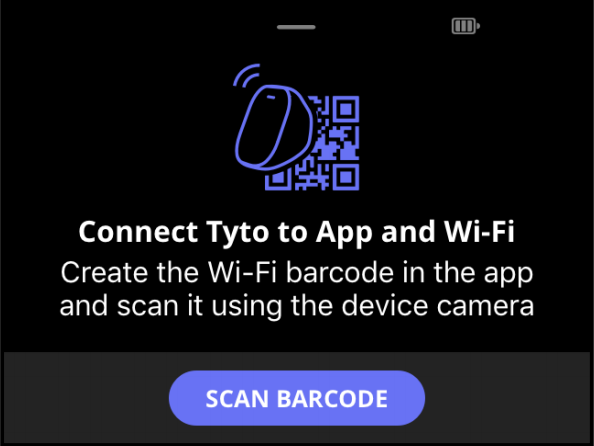
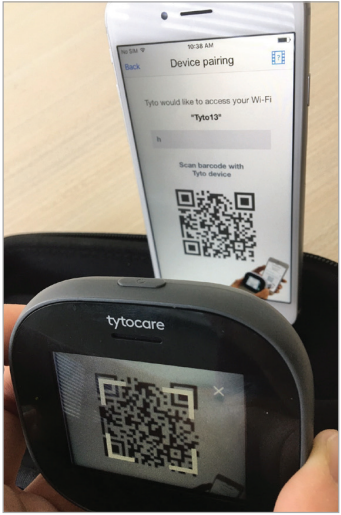
- Scan: Position the device camera so the cross-hairs are over the QR code on your iPhone screen. The device will then direct you to open your iOS settings to confirm the connection.
- Confirmation: Stay on the Personal Hotspot screen of your iPhone until you see the "Connection Successful" message on the Tyto device, then switch back to the TytoCare App.
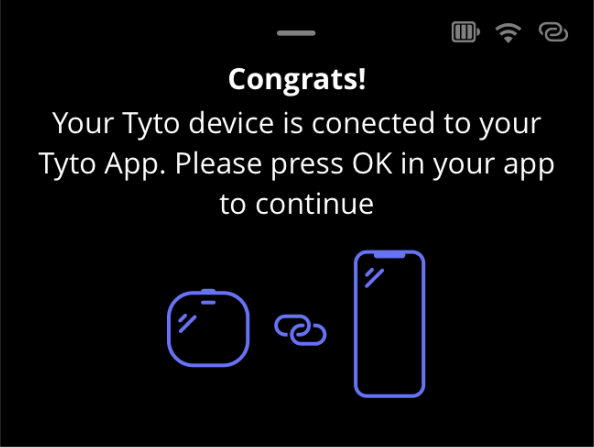
Important Note: For the pairing to complete, you must remain on the Personal Hotspot settings screen on your iPhone until the Tyto device confirms it has joined the network. If you navigate away too early, the connection may fail.