If your TytoHome or TytoPro kit included an Omron Evolv Blood Pressure Monitor, follow these steps to pair it with the TytoCare App via Bluetooth.
Initial Setup
- Enable Bluetooth: Ensure Bluetooth is turned ON on your smartphone or tablet.
- Login: Open the TytoCare App and sign in to your account.
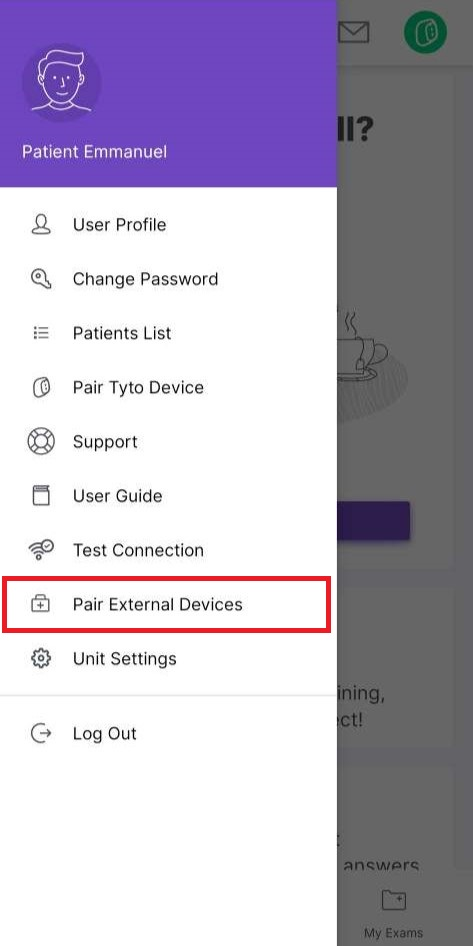
- Navigate to Pairing: Tap the Menu (three lines) and select Pair External Devices. Choose BP Monitor.
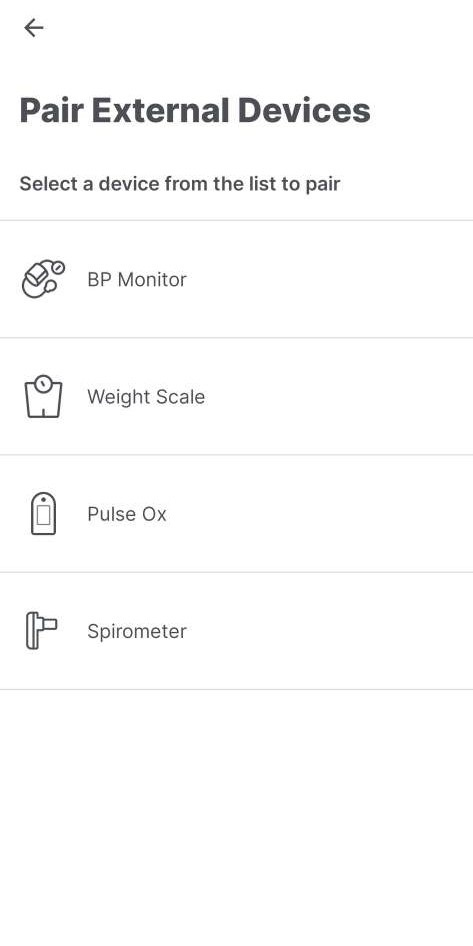
*Note: The available devices list may vary based on your organization's configuration.
Pairing the Monitor
- Power Check: Ensure batteries are correctly inserted into the Omron Evolv unit.
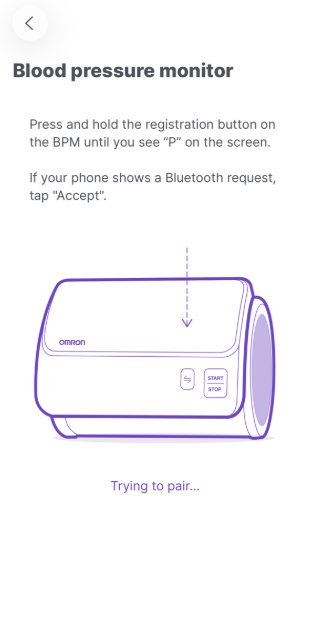
- Registration Mode: Press and hold the Registration button (indicated by two zigzag lines) on the front of the monitor until a "P" appears on the display.
- Confirm Connection: The App will display a "Pairing Successful" notification.
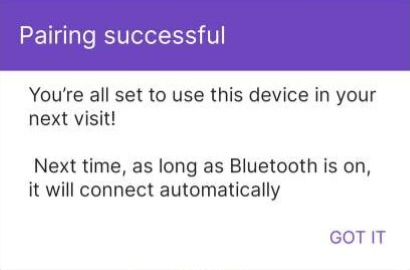
Success: Your monitor is now paired. The App will automatically connect whenever the monitor is in range.