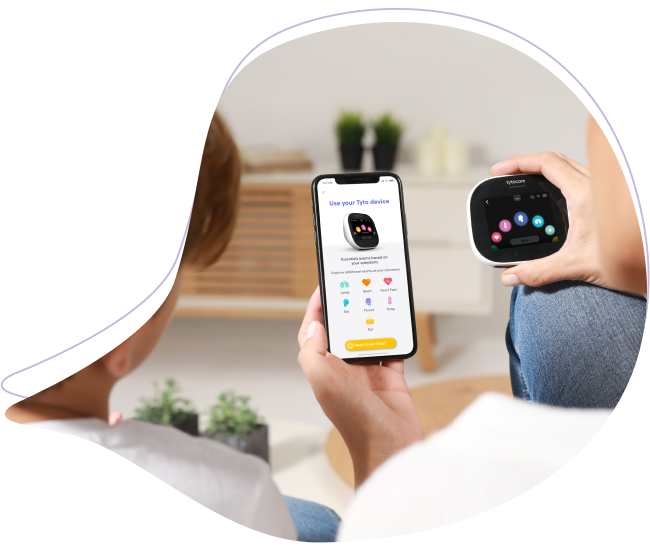
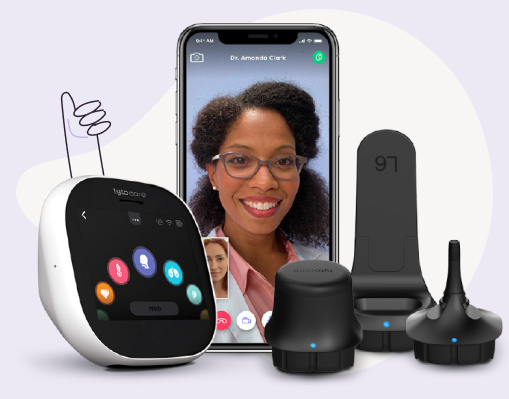
This guide outlines the workflow for healthcare providers to conduct live, remote examinations using the TytoCare Clinician Dashboard. During an online visit, the clinician has remote control over the patient's TytoCare device.
To watch this on YouTube, press CTRL + Click the YouTube logo.
1. Initiating the Visit
Once you click START VISIT, the video conference launches. You will see the patient in the main window and your own feed in the corner.
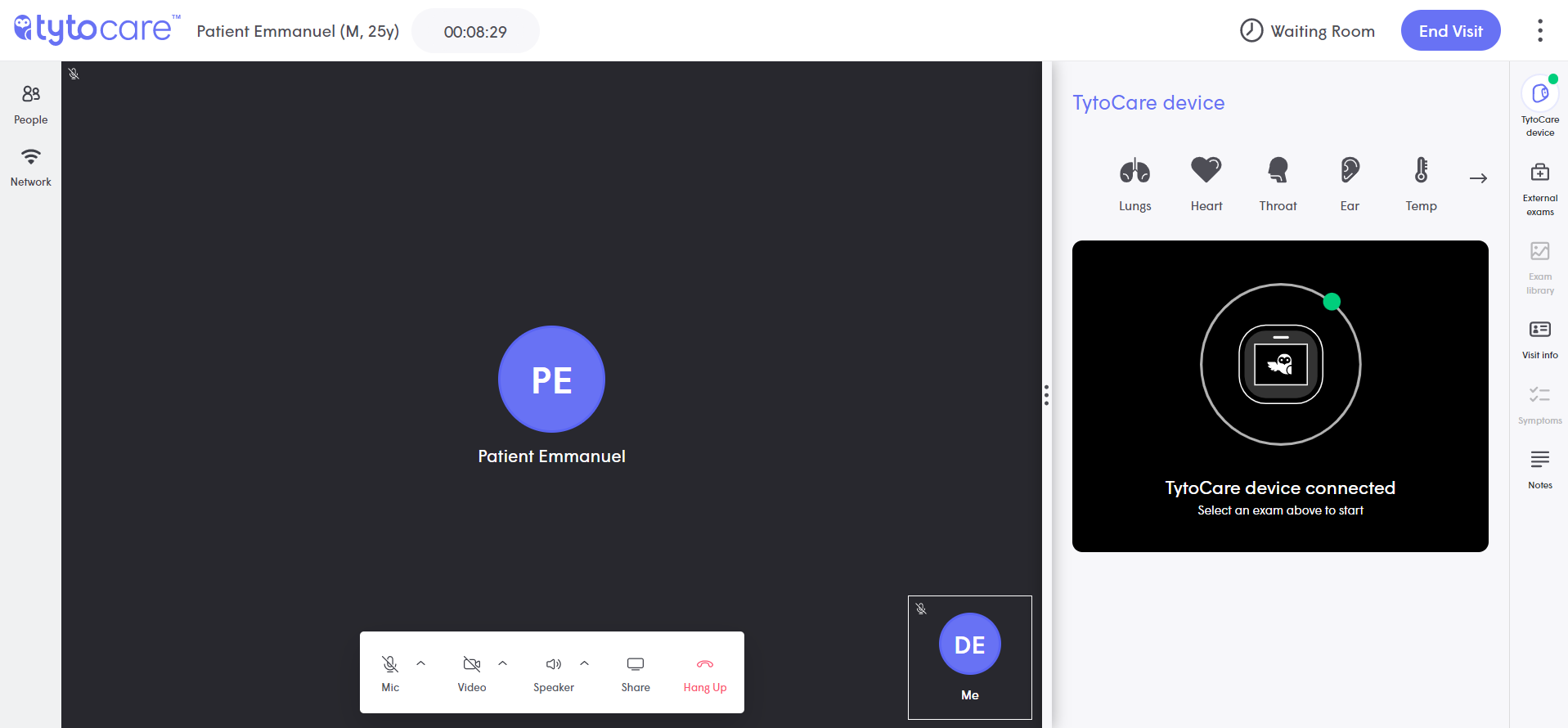
- Device Status: A green dot next to the TytoCare icon (top-right) indicates the device is paired and ready. A red dot means the device is offline or in sleep mode.
- Controls: Use the on-screen toolbar to Mute, Toggle Video, Share Screen, or Hang Up.
2. Performing Stethoscope Exams (Heart/Lungs)
Sound is streamed live to the clinician. Standard headphones are required for accurate auscultation.
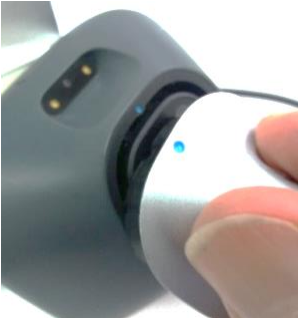
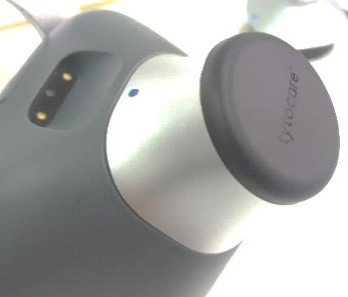
- Auscultation Points: Click the markers on your screen to guide the patient on where to place the device. This updates the visual target on the patient’s screen.
- Filters & Boost: Toggle between Bell (Heart) and Diaphragm (Lungs). Use Boost to amplify faint breath sounds.
- Recording: If the network is unstable, click the red Record button. Recordings are high-fidelity and stored in the Exam Library for playback.
3. Performing Ear Exams (Otoscopy)
Guide the patient to clean the lens and attach the correct speculum (4mm for adults, 3mm for children).
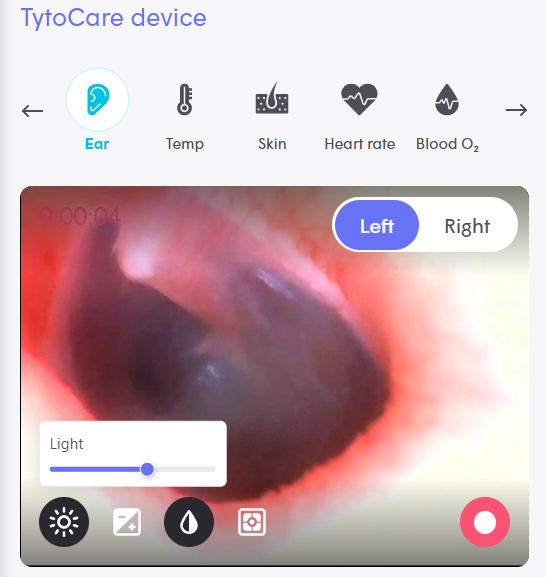
- Exposure/Brightness: Adjust the exposure bar to see past wax or brighten a dark eardrum.
- Time Limit: Ear exams have a timeout to prevent the tip from warming up. The timer is visible in the corner.
4. Temperature, Throat, and Skin Exams
- Temperature: Ensure no attachments are connected. Guide the patient to aim at the center of the forehead (within 2 inches).
- Throat: Use the L8 (Adult) or L6 (Child) tongue depressor. Guide the patient to say "Ahhh."
- Skin: Instruct the patient to hold the device 1.5–2 inches from the area. Use the Focus and Illumination tools to sharpen the image.
Finishing the Visit: You must enter Notes in the right-hand panel before clicking End Visit. Upon ending, the patient receives the summary automatically.