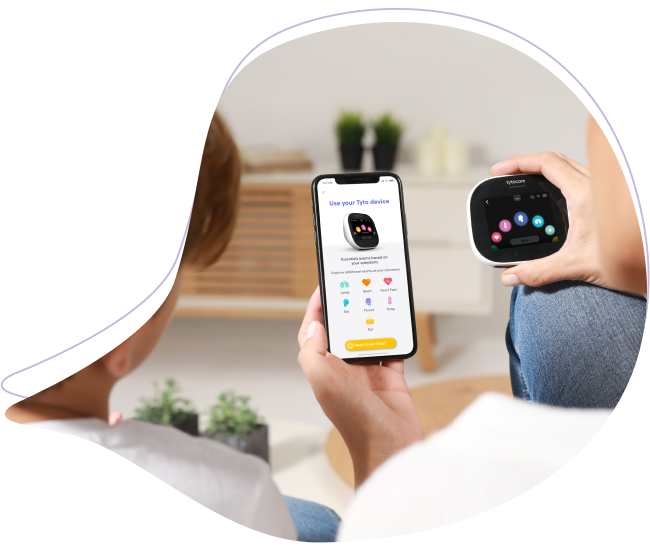
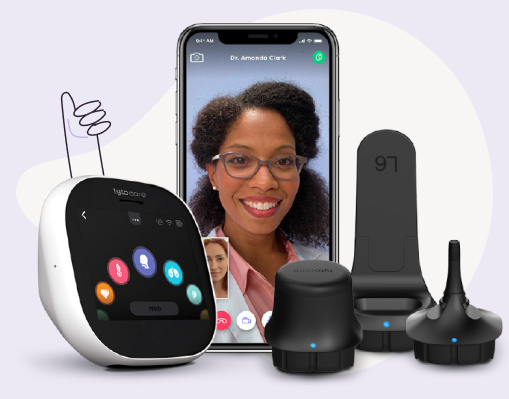
This guide explains how clinicians can access and review "Exam & Forward" (offline) visits submitted by patients via the TytoCare Clinician Station.
To watch this on YouTube, press CTRL + Click the YouTube logo.
1. Accessing the Inbox
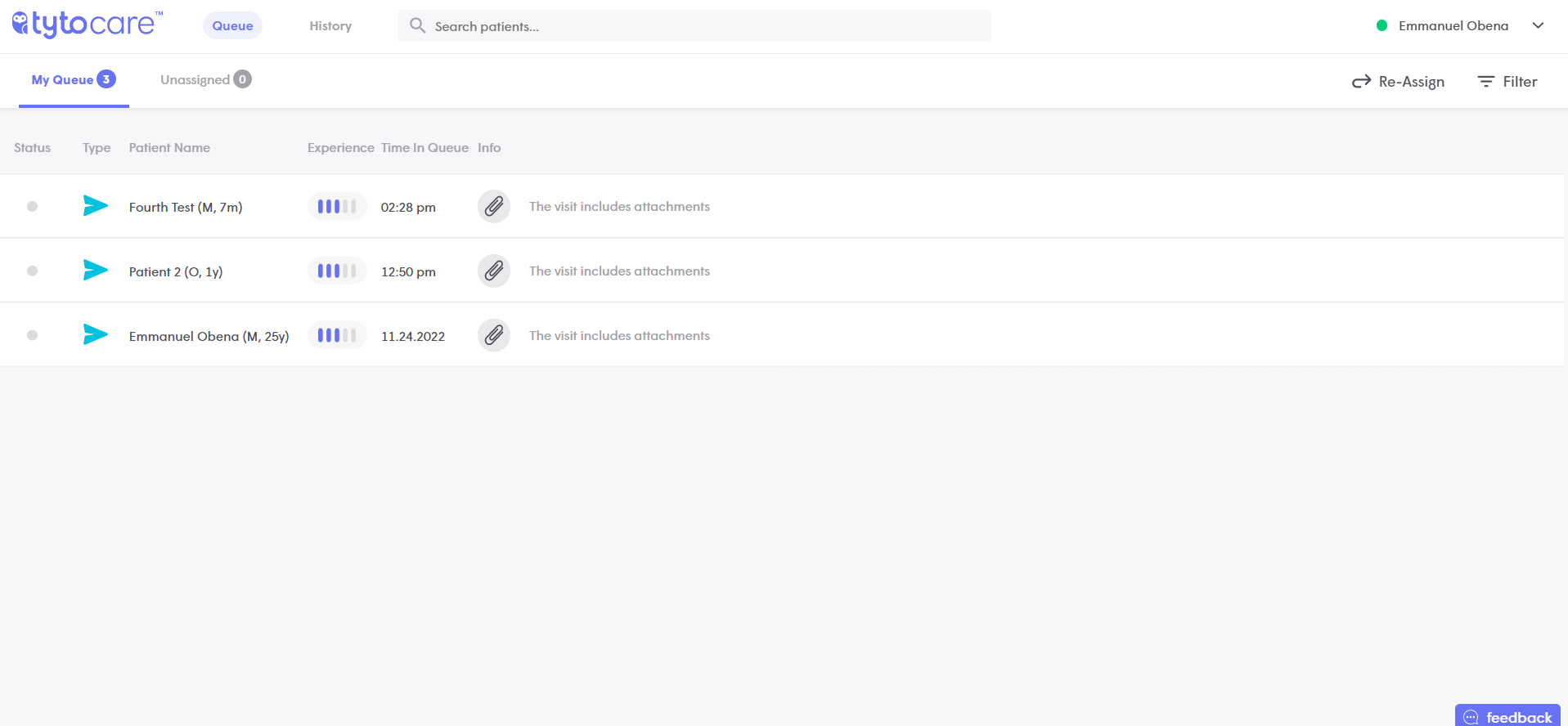
Navigate to the Queue tab on the top-left of the Clinician Station. Click on a patient's name to view their contact information, symptoms, and the list of recorded exams.
2. Reviewing Stethoscope Exams (Heart & Lungs)
Click on the Heart or Lungs exam on the left to open the playback panel. Headphones are required to hear the recorded sounds accurately.
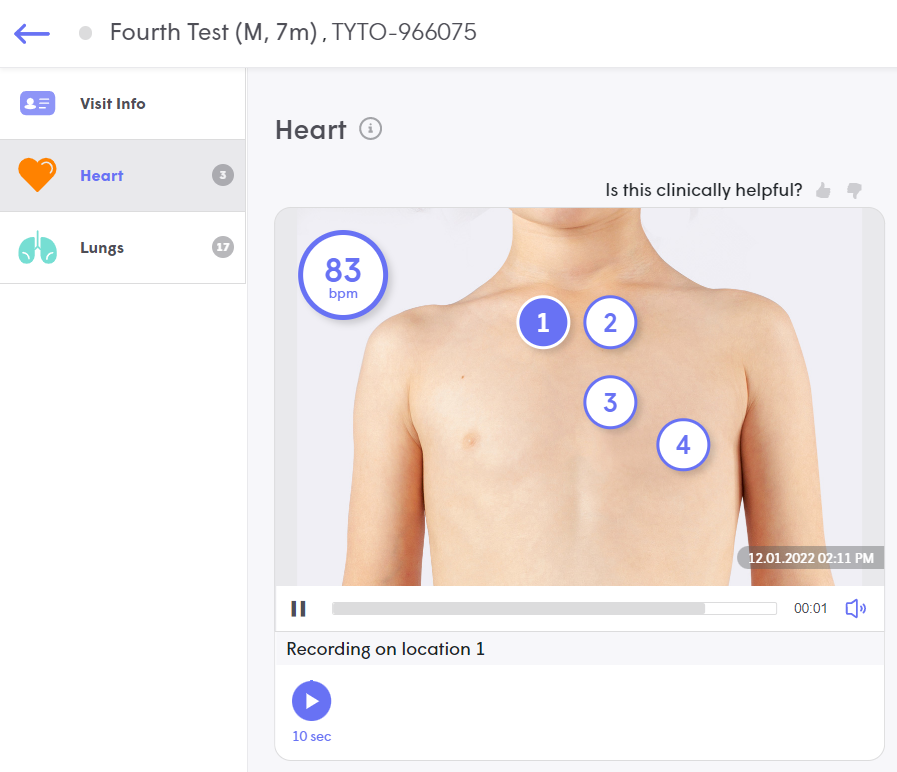
- Audio Filters: Toggle between Bell, Diaphragm, and Wide. You can set your preferred filter as the default for future reviews.
- Auscultation Points:
- ● Blue: Current point being played.
- ○ White: Other recorded points.
- ● Gray: No recording available for this point.
- Orientation: Use the Front/Back toggle for Lung exams to review posterior breath sounds.
3. Reviewing Video & Image Exams
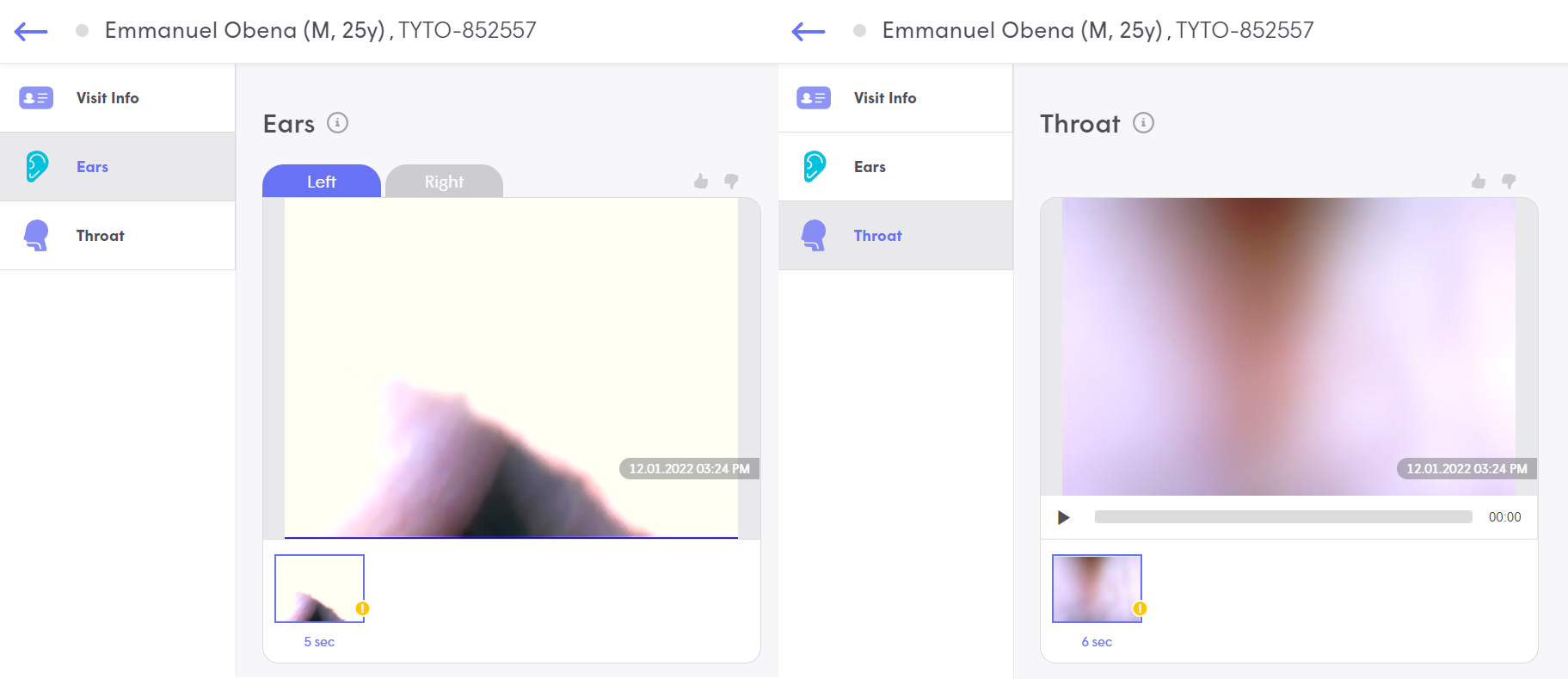
- Ears & Throat: Click the video thumbnails to play. For Ear exams, toggle between the Left and Right ear indicators to verify the anatomy matches the patient's labeling.
- Skin: Review high-resolution stills or videos. Use the interface to zoom in on specific lesions or rashes.
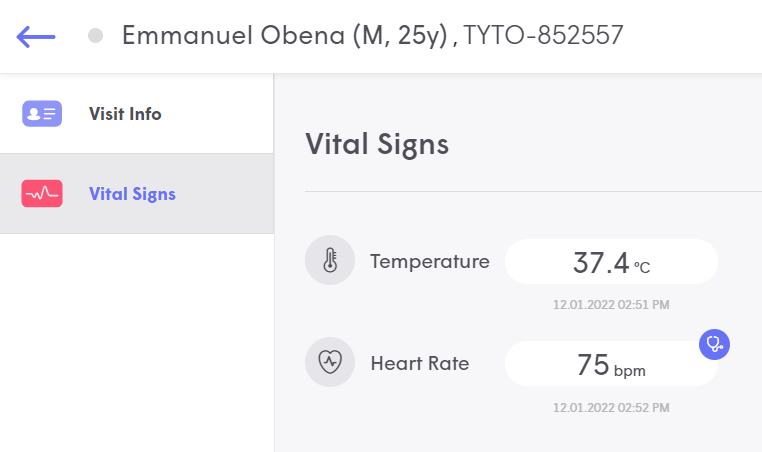
- Temperature & Heart Rate: Numerical results are displayed directly. Click the Heart Rate thumbnail to hear the audio captured during the pulse reading.
4. Adding Notes & Completing the Visit
You must save your clinical findings before the visit can be finalized.
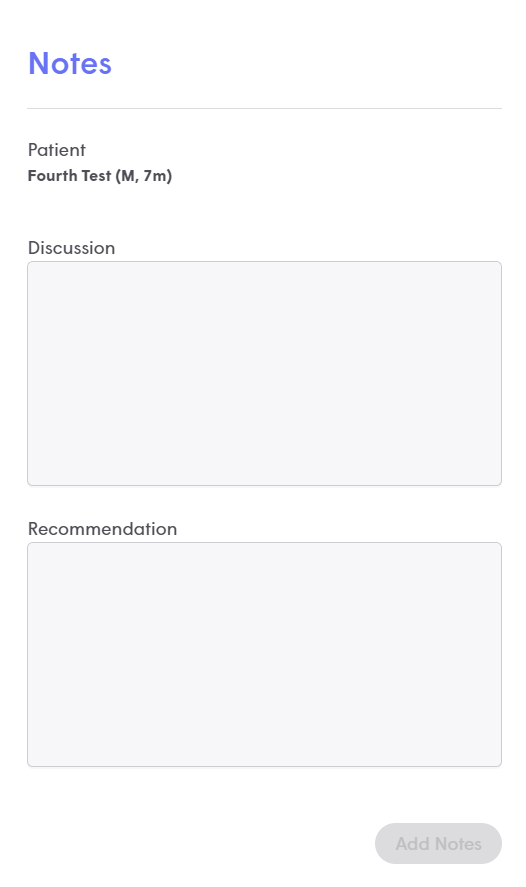
- Click the three-dot menu (top-right) and select Add Notes.
- Enter your discussion and recommendations.
- Click Complete Visit to send your notes to the patient’s app.
Note: Once you click "Complete Visit," the patient is notified immediately. All recordings and your notes are permanently saved in the patient's history for future reference.