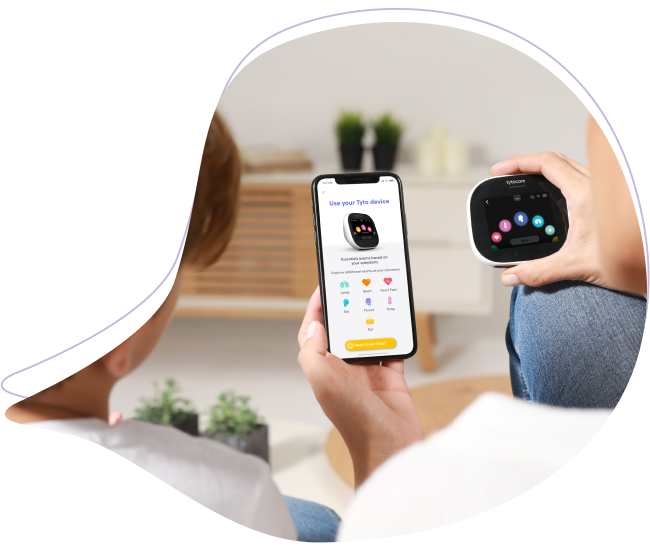
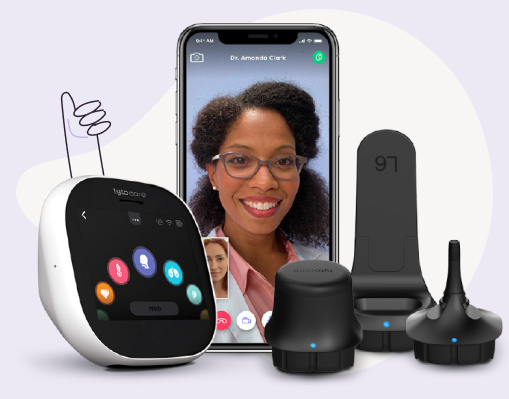
This video guide explains how to successfully submit your captured exam data (images, videos, and audio) to a clinician for review using the TytoPro system.
To watch this on YouTube, press CTRL on your keyboard and click the YouTube logo in the bottom right of the player simultaneously.
How to Send Your Exam Data
- Review Captures: Once you have finished the physical examinations, review your captured media within the TytoApp to ensure clarity and accuracy.
- Select Recipient: Choose the clinician or healthcare organization you wish to send the data to from your approved provider list.
- Submit: Tap the Send or Submit button. Ensure your mobile device remains connected to Wi-Fi until the "Upload Complete" confirmation appears.
- Confirmation: You will receive a notification within the app once the exam has been successfully delivered to the provider's dashboard.
Pro Tip: If you are in an area with weak Wi-Fi, your exams will stay in the "Outbox" or "Pending" state. They will automatically upload as soon as a stable internet connection is restored.