Symptom
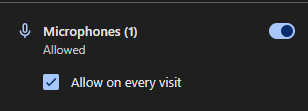
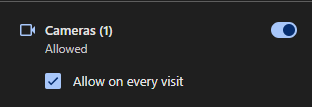
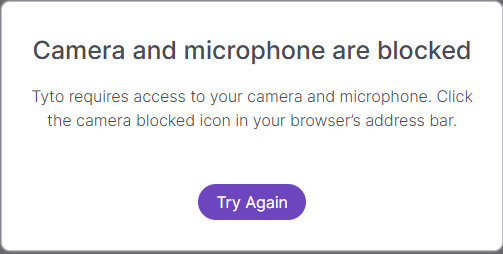
The video session does not start after the provider clicks on Start Visit. A popup message is displayed notifying that TytoCare doesn’t have access to the computer’s camera and microphone.
Possible Cause
The Chrome browser does not have access to the laptop’s camera and/or microphone. This typically occurs if access was blocked or not granted when the browser initially displayed the permission request.
Suggested Solution
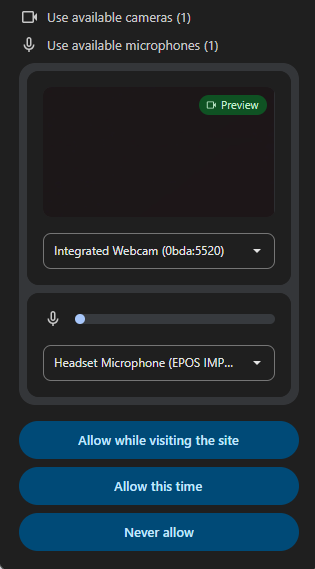
- Click on the camera icon that appears in the URL address bar at the top right corner of the browser.
- Select the option “Allow on every visit https://cloud.tytocare.com to access your camera and microphone”.
- Refresh the page to apply the changes.