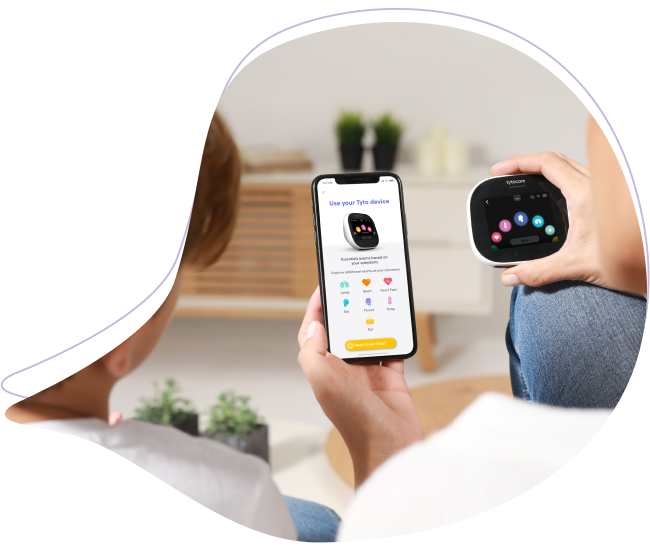
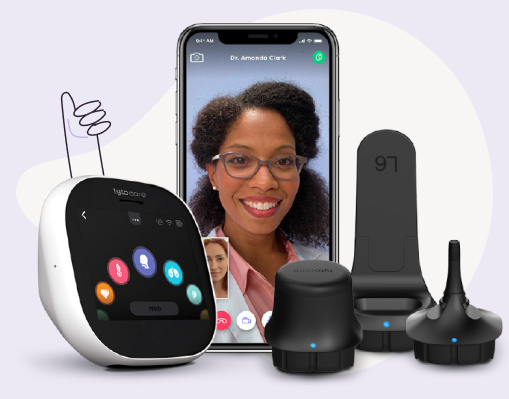
This knowledge article will provide you steps to perform a Skin Exam with your TytoHome device.
To watch this on YouTube just press CTRL on your keyboard and click on the YouTube logo on the lower right part of the window at the same time.
Skin Exam Steps
- Select Exam: Tap the Skin exam icon on the Tyto Device. You may need to swipe right to the second screen to find it. No adaptors are needed for this exam.
- Capture Images: Press Start to activate the camera. Hold the device 1.5–3 inches away from the skin to allow for focus. Press the camera icon to take a photo. You can tap the screen at a specific point of interest to manually focus. If the image is blurry, press Repeat.
- Review & Tag: Once finished, press Done. After submitting data to the TytoApp, you can select the Skin exam line to:
- Review all captured pictures.
- Tag the body part by typing the name of the area where the image was taken.
- Delete unsatisfactory images using the trash can icon.
- Confirmation: Verify a check mark appears next to the skin exam on the main device screen, indicating the data has been successfully captured.
Pro Tip: Ensure you are in a well-lit room to help the camera capture the most accurate color and detail of the skin concern.